






Custom Popup in Xamarin Forms


In this post we will see how to create a custom Popup in Xamarin Forms. First create a new project Xamarin.Forms as shown in the following image.

Now, select the Blank App, .Net Standard and click on OK

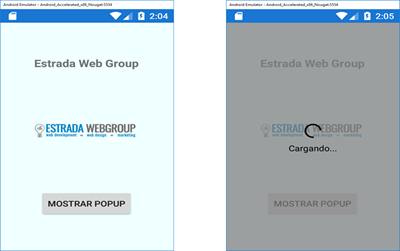
You now have a basica application of Xamarin Forms. We can execute it to test how it looks.
Configuration of the user interface.
First open the MainPage.Xaml page and copy paste the following code.
<StackLayout BackgroundColor="Azure" AbsoluteLayout.LayoutBounds="0, 0, 1, 1" AbsoluteLayout.LayoutFlags="All">
                <StackLayout HorizontalOptions="CenterAndExpand" VerticalOptions="CenterAndExpand" >
                    <Label Text="Estrada Web Group" HorizontalOptions="Center" FontAttributes="Bold" FontSize="Medium"></Label>
                    <Image x:Name="imgEstradaWebGroup" Source="logoEstradaVF.png" HeightRequest="200" WidthRequest="200"></Image>
                    <Button HorizontalOptions="Center" VerticalOptions="Center" Clicked="btnPopupButton_Clicked" Text="Mostrar Popup"></Button>
                </StackLayout>
            </StackLayout>
Popup - Loading
In this step, Create a custom popup using ContentView.
The custom popup is just a content view, you should hide it by default. After the click event, you can show the ContentView.
Write the following code for the popup.
<ContentView x:Name="popupLoadingView" BackgroundColor="#C0808080" Padding="10, 0" IsVisible="false" AbsoluteLayout.LayoutBounds="0, 0, 1, 1" AbsoluteLayout.LayoutFlags="All">
                <StackLayout VerticalOptions="Center" HorizontalOptions="Center">
                    <StackLayout Orientation="Vertical" HeightRequest="150" WidthRequest="200" BackgroundColor="Transparent">
                        <ActivityIndicator x:Name="activityIndicator" Margin="0,50,0,0" VerticalOptions="Center" HorizontalOptions="Center" Color="Black" WidthRequest="30" HeightRequest="30" ></ActivityIndicator>
                        <Label x:Name="lblLoadingText" TextColor="Black" VerticalOptions="Center" HorizontalOptions="Center" VerticalTextAlignment="Center" Text="Cargando..."></Label>
                    </StackLayout>
                </StackLayout>
            </ContentView>
Now, add in the event button click the following code to show pop-up.
private void btnPopupButton_Clicked(object sender, EventArgs e)
        {
            popupLoadingView.IsVisible = true;
            activityIndicator.IsRunning = true;

        }
The full code of the page MainPage.Xaml
<?xml version="1.0" encoding="utf-8" ?>
<ContentPage xmlns="http://xamarin.com/schemas/2014/forms"
             xmlns:x="http://schemas.microsoft.com/winfx/2009/xaml"
             xmlns:local="clr-namespace:PopupPersonalizado"
             x:Class="PopupPersonalizado.MainPage">
    <ContentPage.Content>
        <AbsoluteLayout Padding="0" HorizontalOptions="FillAndExpand" VerticalOptions="FillAndExpand">
            <StackLayout BackgroundColor="Azure" AbsoluteLayout.LayoutBounds="0, 0, 1, 1" AbsoluteLayout.LayoutFlags="All">
                <StackLayout HorizontalOptions="CenterAndExpand" VerticalOptions="CenterAndExpand" >
                    <Label Text="Estrada Web Group" HorizontalOptions="Center" FontAttributes="Bold" FontSize="Medium"></Label>
                    <Image x:Name="imgEstradaWebGroup" Source="logoEstradaVF.png" HeightRequest="200" WidthRequest="200"></Image>
                    <Button HorizontalOptions="Center" VerticalOptions="Center" Clicked="btnPopupButton_Clicked" Text="Mostrar Popup"></Button>
                </StackLayout>
            </StackLayout>
            <ContentView x:Name="popupLoadingView" BackgroundColor="#C0808080" Padding="10, 0" IsVisible="false" AbsoluteLayout.LayoutBounds="0, 0, 1, 1" AbsoluteLayout.LayoutFlags="All">
                <StackLayout VerticalOptions="Center" HorizontalOptions="Center">
                    <StackLayout Orientation="Vertical" HeightRequest="150" WidthRequest="200" BackgroundColor="Transparent">
                        <ActivityIndicator x:Name="activityIndicator" Margin="0,50,0,0" VerticalOptions="Center" HorizontalOptions="Center" Color="Black" WidthRequest="30" HeightRequest="30" ></ActivityIndicator>
                        <Label x:Name="lblLoadingText" TextColor="Black" VerticalOptions="Center" HorizontalOptions="Center" VerticalTextAlignment="Center" Text="Cargando..."></Label>
                    </StackLayout>
                </StackLayout>
            </ContentView>
        </AbsoluteLayout>
    </ContentPage.Content>
</ContentPage>
Compartir:
Cargando...
Artículos recientes
-
-
Popup personalizado en Xamarin Forms
15 mayo 2018 -

Xamarin Forms ¿cómo manejar los eventos?
06 marzo 2018 -
.jpg)
Cómo crear Mapas bindable en Xamarin.Forms (Parte 3)
01 marzo 2018 -
Cómo crear Mapas bindable en Xamarin.Forms (Parte 2)
01 marzo 2018